Support Library
Certificate Transparency Hunting
A step-by-step review of every public certificate issued for your domain: search the CT logs, read each certificate, account for every issuer, and confirm what your servers present with DNS Panopticon, your browser and openssl.
The short answer
A Certificate Transparency (CT) hunt is a regular review of every publicly trusted certificate issued for your domain. You search the public CT logs, read what each certificate says (which names it covers, which certificate authority issued it and when), and then validate the parts that matter: does the name still exist in DNS, is the certificate the one your site actually serves, and did someone you trust ask for it.
This guide walks through that review step by step with Website Recon, Security Posture, crt.sh in the browser, your browser's own certificate viewer and the command line. The screenshots use dnspanopticon.com, our own domain. For the ideas behind CT, start with Certificate Transparency for DNS Discovery; to chase the hostnames a hunt turns up, continue with the Subdomain Discovery Playbook.
CT logs are public, so anyone can search them for any domain. Reading them is fine; connecting to, scanning or testing the hosts you find is only for domains you own or are authorized to assess.
What a hunt looks for
| Signal | Why it matters | Where to check |
|---|---|---|
| A hostname you did not know about | Forgotten staging, vendor or test hosts are where takeovers and stale software hide | crt.sh, Website Recon Advanced, Domain Visualizer Advanced |
| An issuer (CA) none of your providers use | Possible mis-issuance, a compromised DNS or hosting account, or an unknown vendor | crt.sh issuer column, the Certificate History card |
| A certificate nobody on your team requested | The strongest sign that someone else controls part of your DNS or web hosting | crt.sh, then your providers and the CA |
| A wildcard certificate | Covers names that never appear in the logs, and shares one key across them | Matching identities starting with *. |
| A name in an old certificate that still resolves | A retired service whose DNS was never removed | dig, Domain Visualizer |
| Bursts of certificates for one name | A renewal loop, several CDNs or a provider issuing backups | Not Before dates on crt.sh |
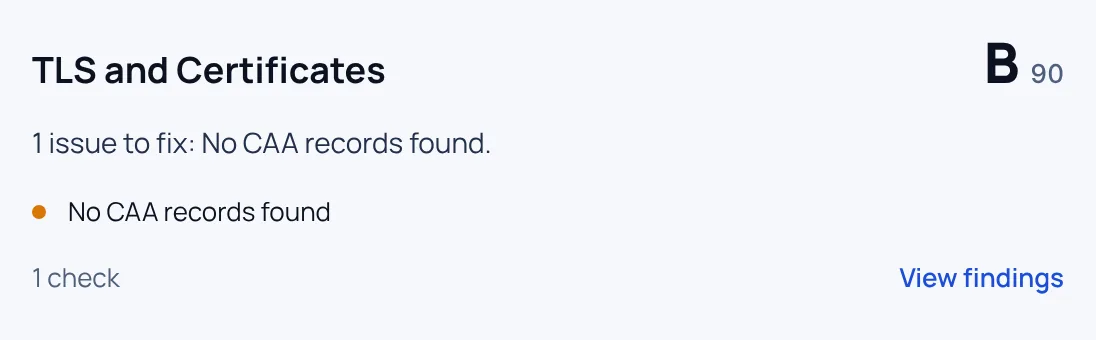
| No CAA record | Any public CA may issue for the domain, so the issuer signal above is harder to judge | Security Posture, dig CAA |
Lookalike domains (for example examp1e.com) never show up in a search for your own domain. Those need a separate check: see Lookalike Domains and Typosquatting and the Brand Protection card in Security Posture.
Step 1: Start with the newest certificate
Run Website Recon on the domain. Its TLS Certificate card reads the CT logs for the host and shows the newest certificate that is still valid: the issuer, the common name, the validity dates, the Subject Alternative Names (SANs) and how many log entries exist for that host.
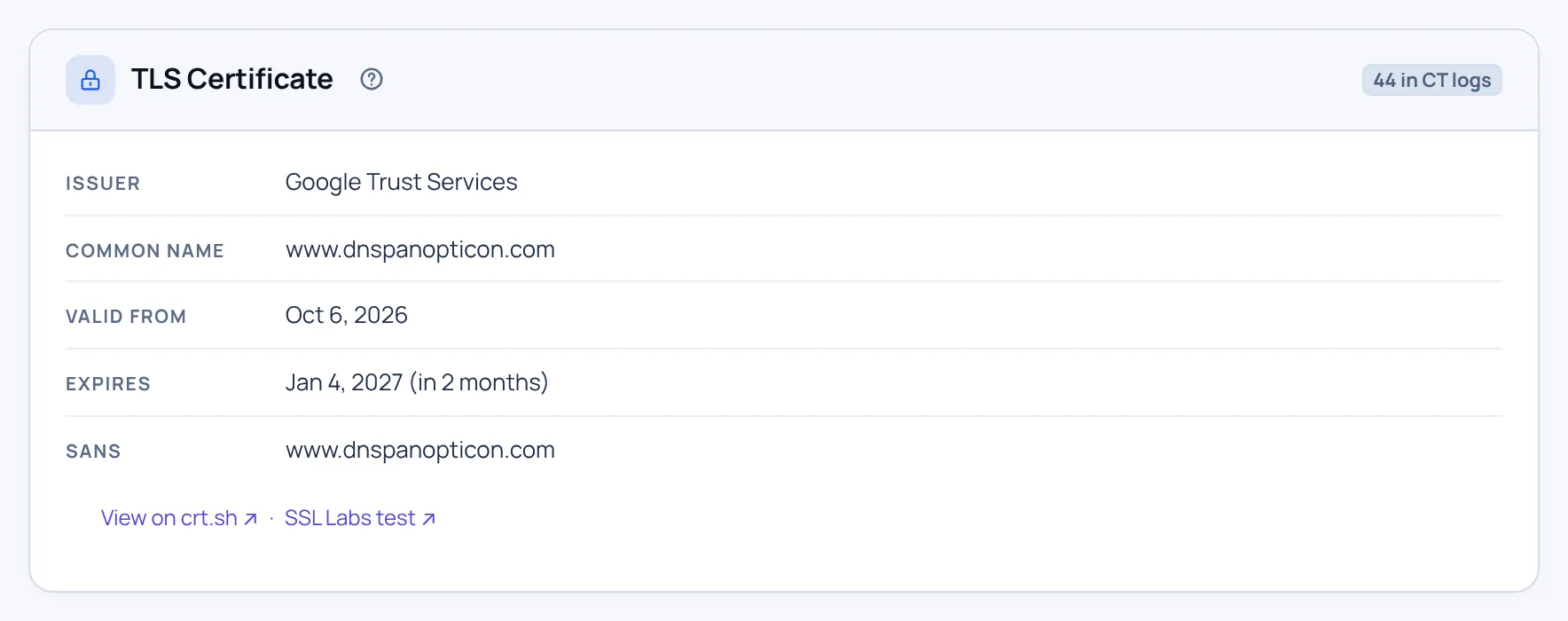
The card comes from the logs, not from a connection to the site, so it is the newest certificate issued, which is usually but not always the one installed. Confirm the live certificate with your browser (step 7) or openssl (step 6) before you treat it as your baseline. Then write down its issuer and expiry date: every other certificate you find is compared with it. If the badge shows far more entries than you expect, that is your first lead, and View on crt.sh takes you straight to them.
Step 2: Search the logs on crt.sh
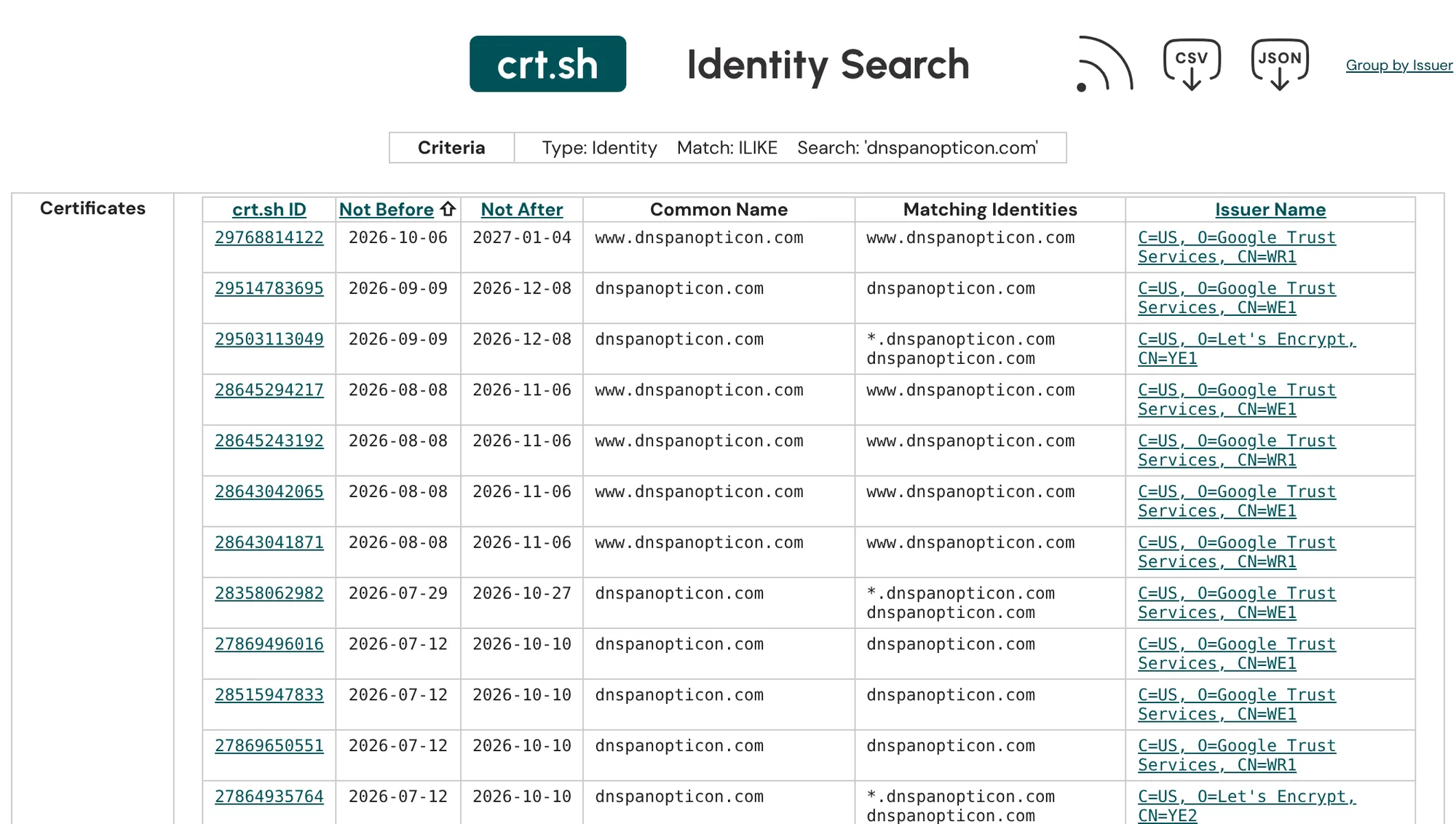
For a quick view, the Certificate Authority Checker lists every current certificate for a domain and its subdomains, grouped by the CA that issued them. To search the logs directly, open crt.sh and search for your domain. crt.sh is a free CT search engine run by Sectigo; it is shared and best-effort, so it sometimes answers slowly or with an error. Wait a minute and try again rather than refreshing repeatedly.
| Search | What it finds |
|---|---|
| example.com | Certificates whose names match the domain; crt.sh usually lists its subdomains' certificates too, as in the screenshot |
| %.example.com | Every certificate that names any subdomain; % is the wildcard |
| https://crt.sh/?q=example.com&exclude=expired | Only certificates that are still valid: the live picture |
| https://crt.sh/?q=example.com&deduplicate=Y | Hides the precertificate when the final certificate is also logged |
| https://crt.sh/?q=example.com&output=json | The same results as JSON, for jq or a spreadsheet |
How to read the columns:
- crt.sh ID opens one certificate (step 3).
- Not Before and Not After are the validity dates. Since March 2026 public certificates last at most 200 days, falling to 100 days in March 2027 and 47 days in 2029, so expect a steady stream of renewals.
- Matching Identities lists the names in the certificate. A row with two names, such as *.dnspanopticon.com and dnspanopticon.com, is one certificate covering both.
- Issuer Name shows the CA and the intermediate that signed it. WE1 and WR1 are the ECDSA and RSA intermediates of Google Trust Services, so one renewal can produce one certificate of each kind.
Seeing the same name several times on the same day is normal. A CA logs a precertificate before issuing, and usually logs the final certificate as well, so each certificate can appear twice. Add a second key type and you get four rows for one renewal.
Step 3: Read one certificate in detail
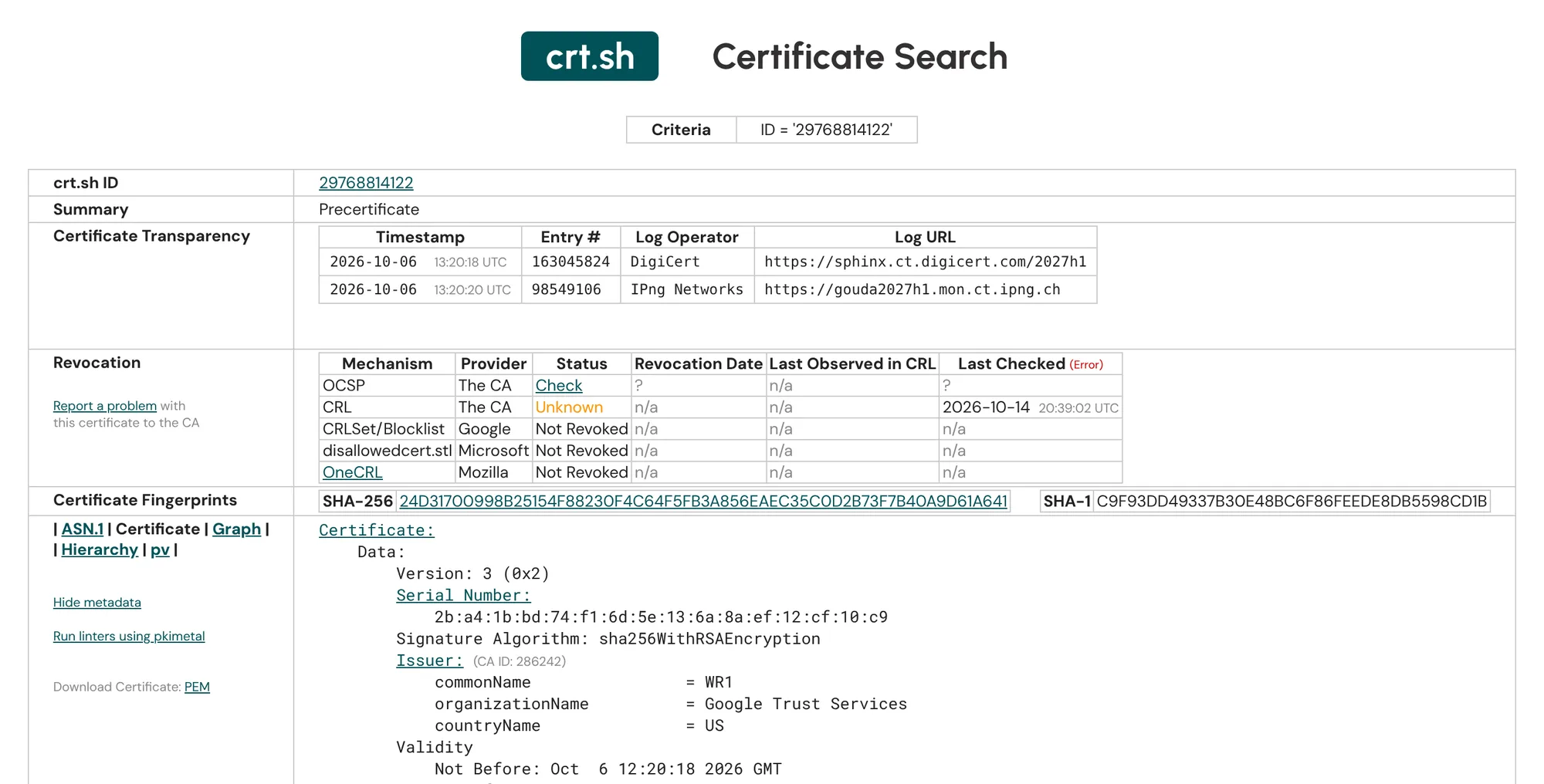
Select a crt.sh ID to open the certificate. The top of the page holds the facts you need for a review; the full decoded certificate follows below it.
| Field | What to check |
|---|---|
| Summary | Precertificate or Leaf certificate. Both describe the same certificate; only the leaf is ever installed on a server. |
| Certificate Transparency | The logs that accepted it and when. The timestamp is your earliest proof the certificate existed. |
| Revocation | Whether the CA or a browser blocklist has revoked it. A revoked certificate you never heard about deserves a question to whoever manages TLS. |
| Certificate Fingerprints | The SHA-256 fingerprint uniquely identifies the certificate. Compare it with the one your server presents (step 6). |
| Issuer | The CA organization and intermediate name. |
| Validity and Subject | Dates and common name. Scroll down to X509v3 Subject Alternative Name for every name it covers. |
| Report a problem | The CA's contact for reporting a certificate you believe was mis-issued or whose key is compromised. |
Step 4: Review the whole history
Scrolling crt.sh works for a small domain, but the summary matters more than the rows. Website Recon Advanced, part of the paid plan, adds a Certificate History card that searches every certificate logged for the domain and its subdomains and sums them up.
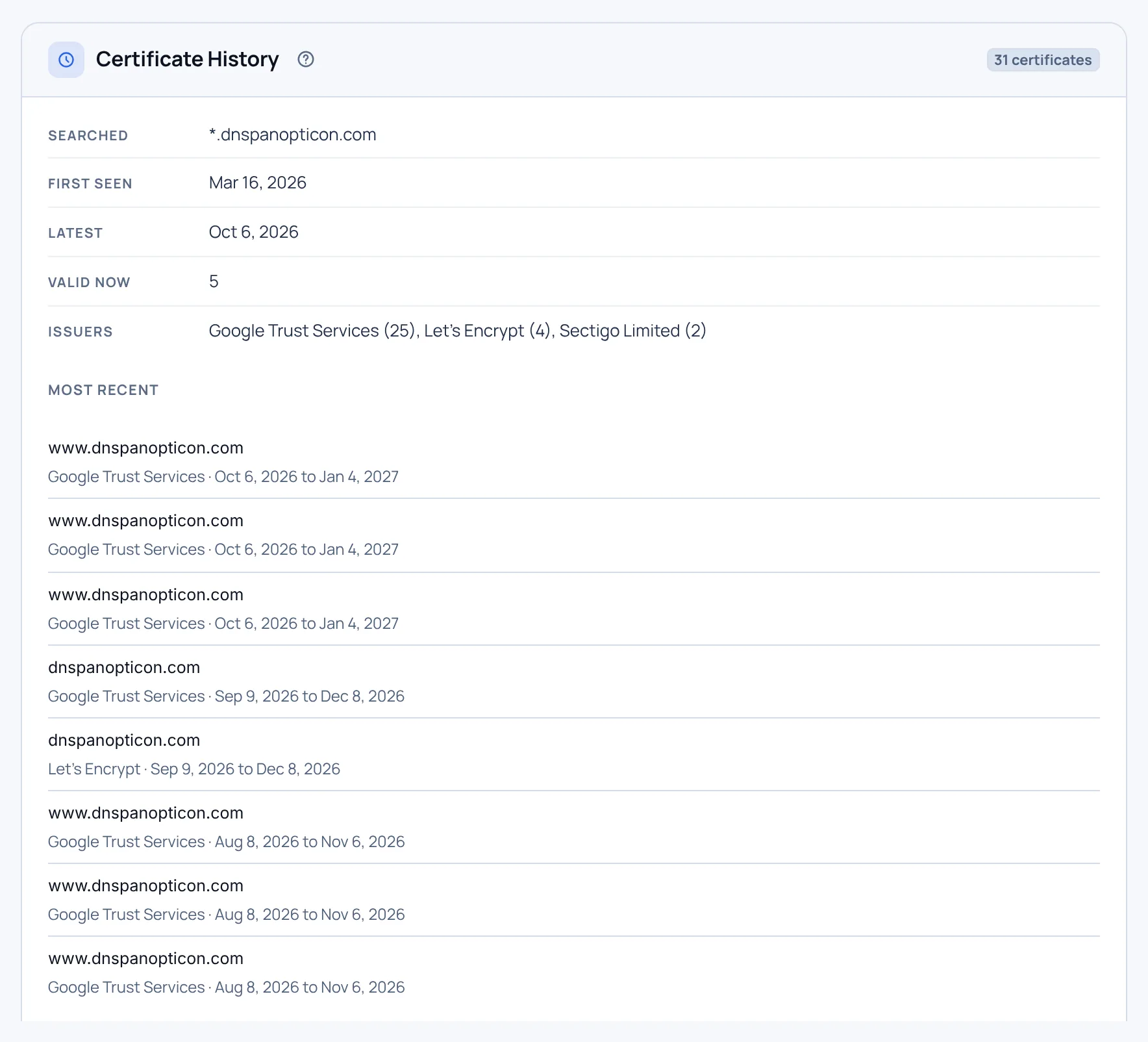
Read it top down:
- First seen should match when the domain or its HTTPS setup went live. An earlier date can mean a previous owner, which is worth knowing for a domain you bought.
- Valid now is how many certificates could be in use today. Each one is a key that has to be accounted for.
- Issuers is the most useful line. In the example, three CAs issued for dnspanopticon.com. That looks alarming until you check the providers: the domain is on Cloudflare, which issues each Universal SSL certificate from one CA and a backup certificate from a different one (Google Trust Services, Let's Encrypt, Sectigo or SSL.com). All three are explained.
For your own domain, list every service that can obtain a certificate for it: CDN, web host, email security gateway, marketing and help-desk platforms with custom domains, and any team running their own ACME client. Each issuer in the history should map to one of them.
Step 5: Compare issuers with your CAA policy
A CAA record (CAA Records Deep Dive) tells CAs which of them may issue for your domain. CT and CAA work as a pair: CAA stops the wrong CA from issuing, and CT shows you whether it worked. Security Posture checks for CAA in its TLS and Certificates card.
| Task | Command | What to look for |
|---|---|---|
| List the CAA policy | dig +short CAA example.com | issue and issuewild tags naming each CA you use, such as 0 issue "letsencrypt.org" |
| Check a subdomain's effective policy | dig +short CAA www.example.com | Empty means the CA climbs to the parent name, so the apex policy applies |
| Same check on Windows | wsl dig +short CAA example.com | Resolve-DnsName has no CAA type, so run dig in WSL, or look for CAA records in a Domain Visualizer scan |
Before adding CAA, list every CA from step 4 that you want to keep. A CAA record that leaves out a CA your provider relies on will make its next renewal fail. Some providers handle this for you: Cloudflare, for example, adds CAA records for its own CAs when you publish any CAA record on a zone that uses Universal SSL.
Step 6: Validate on the command line
The logs say a certificate was issued; they do not say where it is installed. These commands show what a server actually presents, so you can match it with a crt.sh entry. They work on macOS, Linux and Windows with OpenSSL installed (Git for Windows and WSL include it).
| Task | Command | What to look for |
|---|---|---|
| See the certificate a host serves | openssl s_client -connect www.example.com:443 -servername www.example.com </dev/null 2>/dev/null | openssl x509 -noout -subject -issuer -dates -ext subjectAltName | Issuer, dates and SANs. -servername matters: without it, shared hosts may send a different certificate |
| Get its fingerprint | openssl s_client -connect www.example.com:443 -servername www.example.com </dev/null 2>/dev/null | openssl x509 -noout -fingerprint -sha256 | Must equal the SHA-256 on the crt.sh page of the leaf certificate |
| List its embedded SCTs | openssl s_client -connect www.example.com:443 -servername www.example.com </dev/null 2>/dev/null | openssl x509 -noout -text | grep -A4 "Signed Certificate Timestamp" | One block per CT log that promised to include it |
| Decode a certificate from crt.sh | curl -s "https://crt.sh/?d=29768814122" | openssl x509 -noout -text | The same fields as the crt.sh page, from the PEM file itself |
| Check a name and its certificate with curl | curl -svI https://www.example.com/ 2>&1 | grep -E "subject:|issuer:|expire date:|subjectAltName" | curl prints the certificate it verified and whether the name matched |
| Test one origin behind a CDN | curl -svI --resolve www.example.com:443:192.0.2.10 https://www.example.com/ | Connects to the address you give instead of DNS, to check a specific server's certificate |
| Export current names from the logs | curl -s "https://crt.sh/?q=%25.example.com&output=json&exclude=expired" | jq -r ".[].name_value" | sort -u | One name per line, ready to resolve (see the playbook) |
| Use a second source | curl -s "https://api.certspotter.com/v1/issuances?domain=example.com&include_subdomains=true&expand=dns_names" | SSLMate Cert Spotter's view of the same logs; useful when crt.sh is busy |
Decoding the dnspanopticon.com certificate from the crt.sh page above with openssl x509 -noout -subject -issuer -dates -serial -ext subjectAltName -fingerprint -sha256 prints:
subject=CN = www.dnspanopticon.com
issuer=C = US, O = Google Trust Services, CN = WR1
notBefore=Oct  6 12:20:18 2026 GMT
notAfter=Jan  4 13:20:14 2027 GMT
serial=2BA41BBD74F16D5E136A8AEF12CF10C9
X509v3 Subject Alternative Name:
    DNS:www.dnspanopticon.com
sha256 Fingerprint=24:D3:17:00:99:8B:25:15:4F:88:23:0F:4C:64:F5:FB:3A:85:6E:AE:C3:5C:0D:2B:73:F7:B4:0A:9D:61:A6:41
That fingerprint belongs to the precertificate. The leaf certificate a server sends carries the same serial number and names but a different fingerprint, because the precertificate has a "poison" extension where the leaf has its SCT list. Match on the leaf entry when comparing with a live server.
Step 7: Check in the browser
Every major browser shows the certificate it accepted, including the SCTs it checked. Chrome, Safari and (since 2025) Firefox require CT for publicly trusted certificates, so a certificate that loads without warnings was logged.
| Browser | Where to find it | What to compare |
|---|---|---|
| Chrome and Edge | Select the site information icon to the left of the address, then Connection is secure and Certificate is valid. For SCTs, open DevTools and the Security panel. | Issued By, validity and the SHA-256 fingerprint on the Details tab; the Security panel lists each SCT and its log |
| Firefox | Select the padlock, then Connection secure, More information and View Certificate. | Subject Alt Names, Embedded SCTs and Fingerprints sections |
| Safari | Select the padlock in the address bar, then Show Certificate and expand Details. | Issuer, validity, SANs and the Signed Certificate Timestamp entries |
If the browser shows a different fingerprint from the one openssl showed, you are probably reaching a different server: a corporate proxy that inspects TLS, a different CDN edge, or a different IP family. Note which one before drawing conclusions.
Triage: what to do with each finding
| What you found | Likely explanation | Next step |
|---|---|---|
| A certificate from a CA your providers use, for a name you know | Routine issuance or renewal | Nothing; note the date if you track renewals |
| A certificate from a CA nobody can explain | A vendor nobody listed, a test by another team, or mis-issuance | Ask your teams and vendors first. If nobody owns it, use the CA's report link on crt.sh, check your DNS and hosting accounts for unknown changes, and add CAA |
| A hostname you do not recognize | A forgotten or third-party service | Work through the Subdomain Discovery Playbook |
| An old name that no longer resolves | A retired service | Nothing in DNS. If it still resolves, find out why (step 2 of the playbook) |
| Many certificates for one name in a few days | An ACME client retrying, several CDNs, or backups | Check the client's logs; CAs rate-limit repeated issuance |
| A revoked certificate | Key compromise, a replaced certificate or a CA problem | Confirm the server no longer presents it (step 6) |
| A wildcard certificate you did not expect | A platform covering many customer hosts, or a broad internal request | Find which servers hold its key; one compromise covers every name |
Make it continuous
A one-off hunt finds today's leftovers; monitoring catches the next unexpected certificate within hours. Several services watch the logs and email you when a certificate for your domain appears, including SSLMate Cert Spotter and the CT monitoring built into some CDNs, Cloudflare among them. A simple routine:
- Every alert: match the certificate with a provider within a day.
- Monthly: repeat steps 2 to 5 and compare the issuer list with last month's.
- When a service is retired: remove its DNS records first, wait out their TTL, then release the resource, and expect its certificates to stop renewing.
- When a vendor is added: add its CA to your CAA records before it needs a certificate.
FAQ
Why does crt.sh list the same certificate two or four times?
A CA logs a precertificate before issuing and often logs the final certificate too, so each certificate can appear twice. CAs that issue an ECDSA and an RSA certificate together double it again. Add deduplicate=Y to the search to hide precertificates that have a matching final certificate.
Is a certificate from an unfamiliar CA always a problem?
No. CDNs, email gateways and SaaS platforms with custom domains request certificates for you, and some providers, such as Cloudflare, issue backup certificates from a second CA. It becomes a problem when nobody in your organization or among your vendors can explain it.
Can Certificate Transparency stop a bad certificate from being issued?
No. CT makes issuance visible after the fact. CAA records restrict which CAs may issue in the first place, and monitoring the logs tells you quickly when something gets through.
Sources and further reading
- RFC 6962: Certificate Transparency
- RFC 9162: Certificate Transparency Version 2.0
- RFC 8659: DNS Certification Authority Authorization (CAA) Resource Record
- Chrome Certificate Transparency policy
- Apple Certificate Transparency policy
- MDN: Certificate Transparency
- CA/Browser Forum Ballot SC-081: reducing certificate validity periods
- crt.sh Certificate Search
- SSLMate Cert Spotter API: issuances endpoint
- OpenSSL s_client manual
- curl manual
- Cloudflare: Backup certificates
- Cloudflare: Add CAA records